
Your Stablegate personal account, step by step
Short videos of every step in the personal account, from sign-up to your first payment. Each one shows exactly where to click.
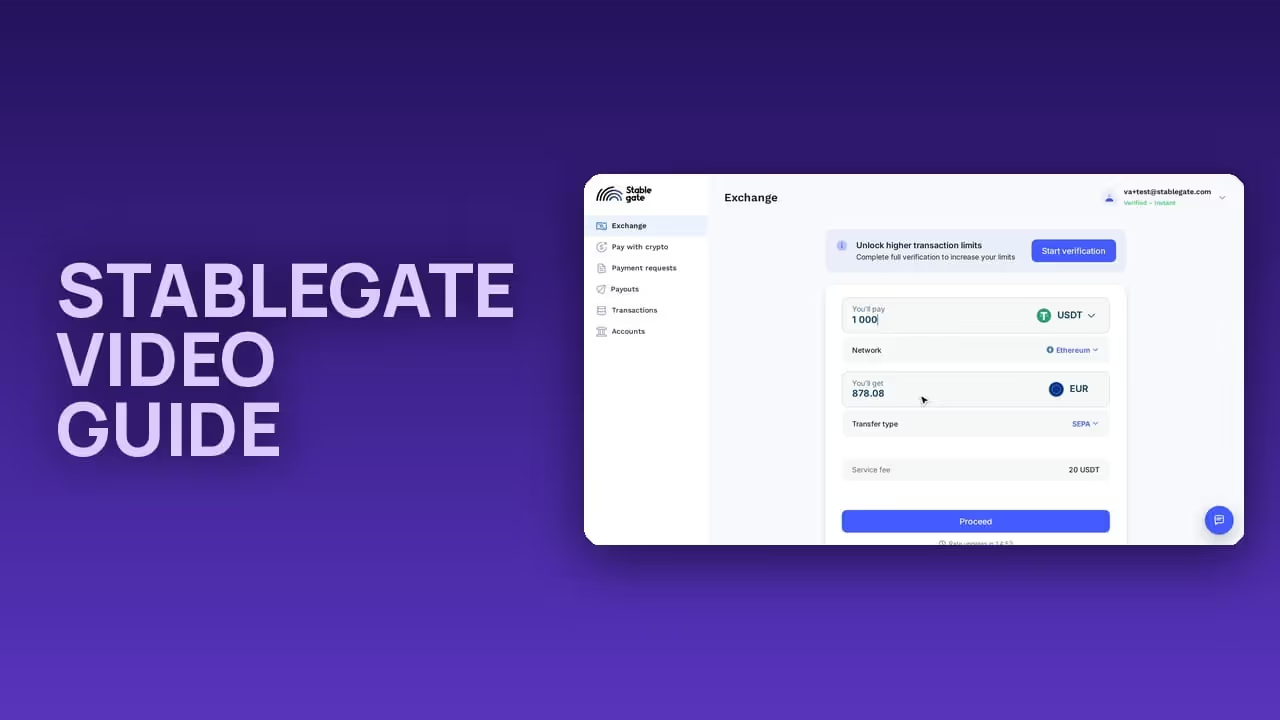
Every step of the Stablegate personal account in a short silent video, from sign-up to your first payment. The cursor shows where to click and the highlighted button is the one to press. Start at the top or jump to the step you need.
1. Sign up
Open app.stablegate.com/signup, choose "I'm an individual", enter your email and a password. Read and accept the declaration, confirm the code we email you and fill in your personal details. You land in the account on the Instant level straight away.
2. What you can do on Instant
Instant needs no documents and lets you exchange up to €1,000 a month. Sections marked "Verification required" open after Standard verification.
3. Pass Standard verification
Five short steps without leaving the account: your country, a selfie, your ID document, your address and a questionnaire about your finances and source of funds. Check the summary and press Send application.
4. Activate your account
Once we approve your verification, you get an email "Account approved — one step to activate" and every money section shows "Activate your account". Choose one of two ways:
- Make a transfer from a bank account in your name in one of the approved countries - the list opens from the "approved country" link. Online-only banks such as Revolut or Wise are not accepted. Enter the IBAN you will send from and press Continue.
- Book a video interview - five minutes with our team. Have the ID or passport you verified with, and be ready to confirm your full name, date of birth, nationality and residence address.
5. Add your bank account
Accounts → Bank accounts → Add new. Paste the IBAN - the BIC and the bank name fill in by themselves. Add the holder's address and a name for the account.
6. Add a crypto wallet
Accounts → Crypto wallets → Add new. Choose the network, paste the address and name the wallet. To prove the wallet is yours, send the small amount shown to our address from that wallet. The wallet is added once the network confirms the transfer.
7. Sell crypto for euros
In Exchange enter how much you sell and pick the network. You see the euros you get, the service fee and when the rate updates. Choose the bank account for the payout, check the details and create the order. Then send the crypto to the deposit address the order shows.
8. Buy crypto with euros
Enter the euros you pay, choose the coin and its network, then the wallet to receive it. The order shows our bank details. Use the purpose of payment exactly as given - that is how your transfer finds your order.
9. Pay a supplier with crypto
Pay with crypto sends euros from our bank account to anyone you pay, on your behalf. Add the recipient's bank account right in the form, write the purpose, enter what the recipient receives and create the order. Send the crypto to the deposit address the order shows. The quoted rate holds for 15 minutes, a later deposit goes through at the rate of that moment. The payment then appears in Transactions.
10. Request a payment in crypto
Payment requests: enter the amount in euros, the bank account it lands on and the purpose. You get a QR code and a payment link to share. The payer chooses a crypto asset and pays, you receive euros. The request waits in Transactions until it is paid.
11. Track your transactions
Active shows what is in progress with its status, History keeps everything finished. Open a transaction to see its details.
12. Cancel an unpaid order
Open the order in Transactions and press Cancel transaction. It moves to History.
13. Check and raise your limits
Profile → Limits shows your lifetime turnover, what is left and the minimum transaction of €100. To raise the limit, press the upgrade button, answer a few questions about your source of funds and upload your Proof of Funds documents.
14. Set up recurring payouts
A payout template gives you a dedicated deposit wallet: crypto sent to it turns into a payout to your bank account. Payouts → Add template, choose the network, the bank account, the currency and the transfer type.
Stuck on a step? Write to us from the chat button in your account.
Published for general information and education only. Not investment, financial, legal, or tax advice, and not an offer or solicitation in any jurisdiction. This is not marketing - Stablegate does not market its services to persons in the EU/EEA, the UK or the US (Restricted Persons).
The views expressed are current as of the publication date and may change. Third-party quotes are attributed and used under applicable quotation exceptions. Sourced and first-party data has not been independently verified and is provided without warranty. Any forward-looking statements are illustrative only. Past performance is not indicative of future results.
STGG AG is not a MiCA crypto-asset service provider (CASP) and does not offer or onboard services to Restricted Persons via this hub. Any service relationship arises only away from this hub, at the client's own exclusive initiative.
Related articles
 NewsStablegate
The Standard limit is now 50,000 EUR
We have raised the lifetime limit on the Standard level from 30,000 EUR to 50,000 EUR. It applies to individuals after verification and the…
 NewsStablegate
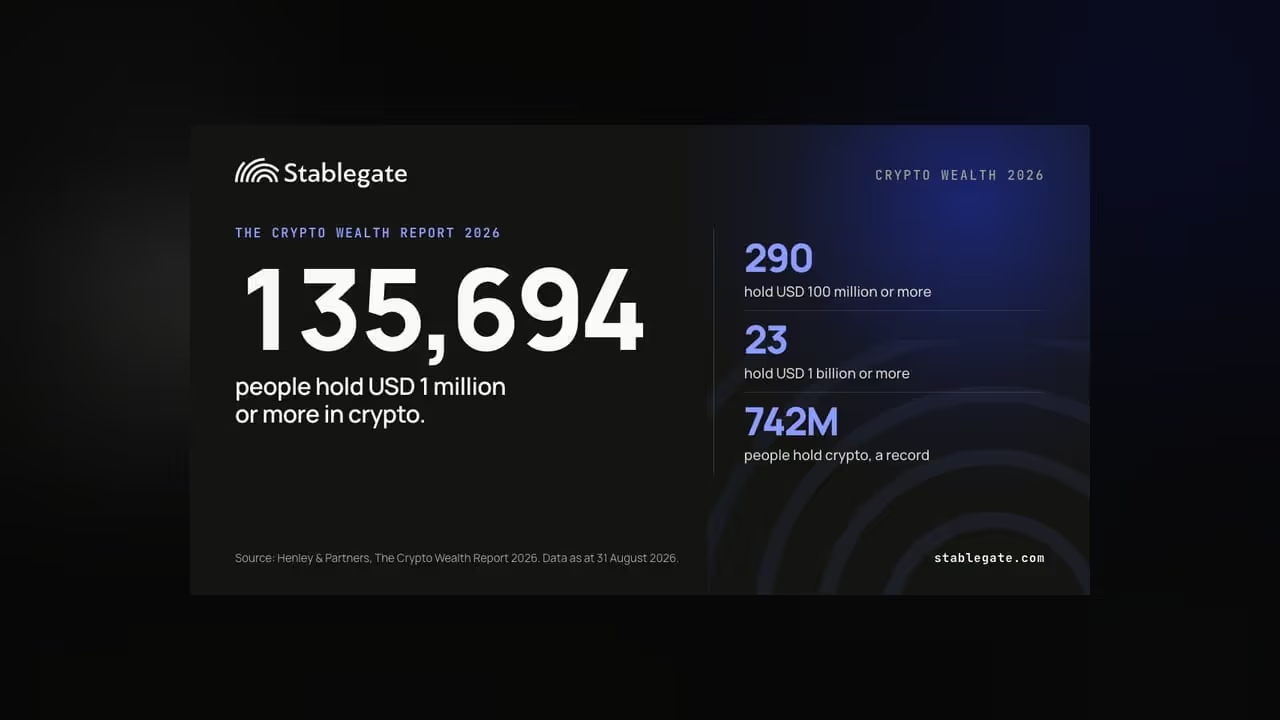
135,694 people hold USD 1 million or more in crypto
Henley & Partners counts 135,694 people with USD 1 million or more in crypto. 290 hold USD 100 million or more, 23 hold USD 1 billion or…
 CompliancePaymentsStablegate
The Arithmetic Nobody Multiplies
Onboarding one corporate client can take up to 100 days. A family office supports around 100 entities. Nobody multiplies the two, and the…